
When somebody sends a spreadsheet that they have edited from their desktop, all too often it includes links to other spreadsheets in their personal area. Excel tries to get the data from those links, but inevitably fails.
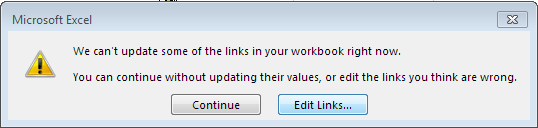
For some link types – particularly those connecting to a proper external data source, such as an online database or a workbook that’s published on Sharepoint – Excel offers a way of correcting or updating the link. But that won’t work if the link is to a file on somebody’s desktop, hardwired as a reference in a formula somewhere.
Moreover, that link cannot be broken: the offending formulas will always link to that inaccessible data source. This differs from data that’s been imported through Excel’s External Data functions, where it is possible to break the link and work on the data independently from the source. Despite that, the Edit Links dialog is the key to removing unwanted links to other files, because it gives us key information about the name and path of the unreachable data file:
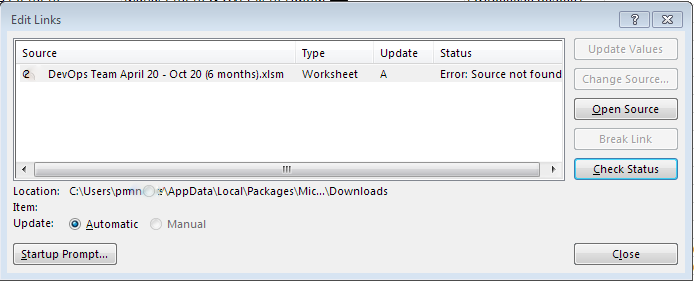
Here we can see the problem is definitely caused by a link to a file in somebody’s personal folders (with apologies to my colleague Trisha, but it’s useful to illustrate this article with a real example). Now we might be able to just search the entire workbook for Trisha’s username and that might be good enough to find all the offending links:

Uh-oh! That didn’t work. What next?
Basic steps for tracking down a broken link
At this point, you’d be forgiven for Googling the problem and this Microsoft article is what you would probably find. It suggests:
- First, search for .xl to find links to other workbooks. Some sites recommend searching for the [ character, because references to cells in other spreadsheets are expressed in the form [workbook.xlsx]Worksheet!A1 But we’ve effectively already done this step because this all amounts to the same thing: looking for a direct reference in a formula in a worksheet.
- Look in Name Manager to see if there is a named range referring to an external workbook. This can happen if a named range is pasted from a different workbook – a reference to the source range is included in the destination spreadsheet, even if you have no intention of ever referring to it directly.
- Search for embedded objects – Office can nest documents within documents.
- The titles of graphs can be generated from a formula which won’t be found by the search in step 1, so check these.
- The data sources of graphs may similarly contain external references.
Steps 3 – 5 need to be completed manually. There are some macros online that may speed this up.
In the case of this particular workbook, none of these steps found the source of the problem. It’s time to look a little deeper still.
Taking the workbook apart
Modern Office document files are actually just zipped collections of XML (textual) data files. Rename spreadsheet.xlsx to spreadsheet.zip, and you can just extract the contents with WinZip.
This 5MB workbook expands out to 57MB, contained in 124 files and 19 folders. At first glance, a folder called externalLinks looks promising but actually only contains metadata about the links; it doesn’t tell us the actual source.
Notepad++ contains a Find in Files search function. We can use this to search all of the extracted files for the telltale username we spotted earlier. Sure enough, it returns four results: one of them the externalLinks file we spotted already, and three of them in sheet10.xml. (What is “sheet10”? Under the hood, even if you rename a worksheet, Excel continues to refer to it by the number it was given when it was created. We often make use of this when writing macros. But that’s not what this sheet number refers to; this is simply a file name that is mapped into the structure of the workbook using a series of relationships. More on that in a moment.)

Large volumes of XML aren’t very easily human-readable, but I’m not intending to edit the XML directly, only to find the source of our problem. I still have two outstanding unknowns: identifying where the external reference is, and identifying why it hasn’t shown up in any of my searches so far.
Here are the offending items in the XML file, nicely grouped together and with a pretty big clue as to what the problem is:
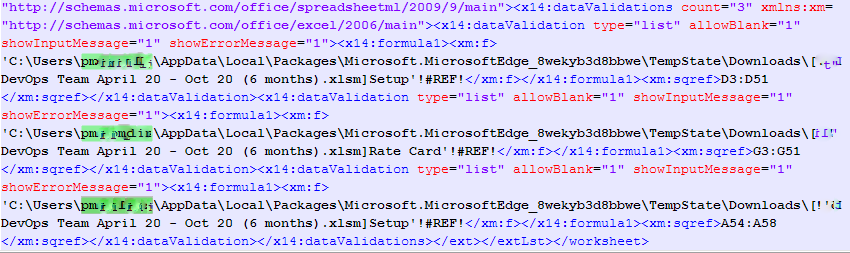
Note the tags that surround each of the instances of the broken link: <x14:dataValidation> This tells us that these are data validation rules, and on inspection, they apply to three distinct cell ranges (D3:D51, G3:G51, A54:A58) within this worksheet.
We still don’t actually know which worksheet this “sheet10” actually is. We might be able to take an intelligent guess, but in case it’s not obvious, we can do more searches through the XML files:
A search for “sheet10” leads us to a file called workbook.xml.rels which maps out the structure of the workbook. It maps the sheet10.xml file to a relationship with an identifier of rId15:
A subsequent search for “rId15” leads us to a file called workbook.xml which lists the display names of all the worksheets and named ranges, and where we can see that the worksheet referred to by rId15 is titled “Labour budget”.
That’s all we need. Open the file in Excel, go to the Labour budget tab, clear the data validation rules from the three small cell ranges. Finally, we no longer have a problem with broken links in this workbook.
How do we avoid this happening to our own spreadsheets?
This is, without doubt, a frustratingly long-winded way of dealing with what should be a trivial problem, but it highlights an issue with the way that all Office files deal with information that is copy-and-pasted: you usually end up pasting far more than you intended. It happens frequently in Word, as well: it’s all too easy to paste a bit of text that has a style associated with it (colours, fonts etc) and accidentally overwrite the template’s style information.
This isn’t exactly a golden rule of Excel, but it should be an uncontroversial power-user rule: Only paste as much as you mean to. If you need to transfer a table of values from one spreadsheet to another, use the Paste Values option. If you need formulas, then Paste Formulas. That’s it. You almost never need to paste formats (since the destination file will invariably be formatted differently), and as we’ve just seen, pasting data validation rules is fraught with hazards (and the destination file should be implementing its own validation rules, anyway).
Excel’s Paste Special dialog does allow you a little more control, if you need it. You might well want to paste the number format (date, currency etc) while not including other style information (font, colour); Paste Special can do that:
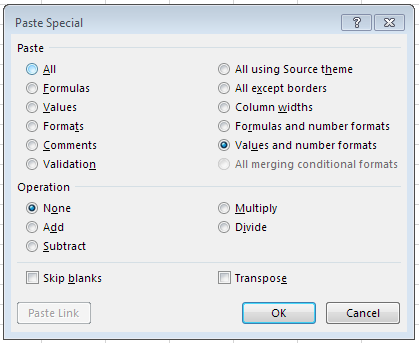
If all else fails, you can use Paste Special several times in succession to paste, for example, values, comments and column widths, while omitting formats and validation rules. But look closely at this dialog, and beware all of the other things that will get pasted if you just Ctrl+v your data.
Key conclusions
- Spreadsheets may contain references to cell ranges in other spreadsheets. Excel will try to retrieve data from the referenced spreadsheet, but this may not be possible – for example, when the data source is stored in somebody’s personal folders.
- Data validation rules and conditional formatting rules may contain references to an external spreadsheet, creating a non-obvious link – something that even Microsoft’s own guidance on troubleshooting external links has omitted.
- Data validation and conditional formatting rules do not show up when we search a spreadsheet’s formulas.
- When pasting from one spreadsheet into another, data validation rules may be pasted along with the values, formulas and formatting from the source.
- When all else fails, we can use readily-available tools to examine the contents of the Excel data file, in an attempt to locate and isolate a problem that cannot be found conventionally.
- We should routinely use Paste Special to avoid pasting unwanted aspects of the source file, such as validation rules and formatting.